AI workflow updates
Read our Dots and Muse updates, with sources and notes on local data.
Read updatesAI Agent Clean
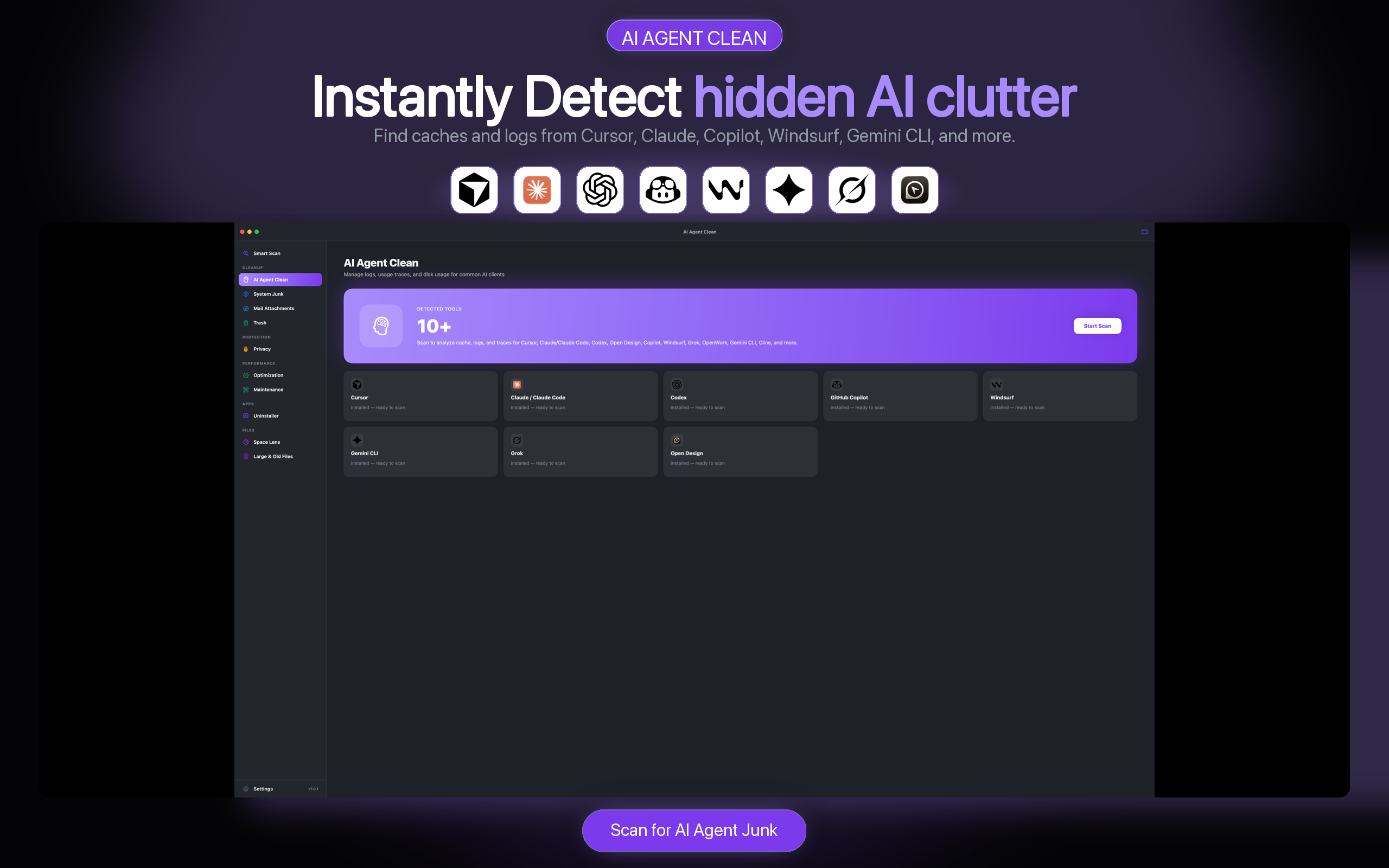
Scan supported AI tool and Mac storage locations locally, then review detected files and sizes. Use Deep Scan to inspect additional supported locations.
Scanning stays free · macOS 14+ · Plans are selected in the Mac App Store
Read our Dots and Muse updates, with sources and notes on local data.
Read updatesWatch the 42-second English product overview with English captions and transcript.
Watch videoBrowse all published articles and guides. Titles marked English open English content.
Browse articles Cursor
 Claude
 Codex
 Copilot
 Windsurf
 Grok
 OpenWork
 OpenCode
 Gemini CLI
 Cline
AI Agent Clean analyses supported locations locally without uploading files or full paths.
Keep any item by unchecking it before the cleanup begins.
Review whether an action moves files to Trash or removes them permanently; recovery depends on the remaining data and access.
Review supported tool storage: AI Agent Clean 1.0.9 reduces repeated scan preparation work, improves retained-result display when switching views, and fixes Deep Scan confirmation. Review each path, category and selection before choosing an available action. What’s New in 1.0.9.
Explore the dedicated AI cache cleaner
Mac cleaner / Smart Scan · CleanMyMac alternative · Clear Cursor cache · Claude Desktop · Codex logs · Pricing
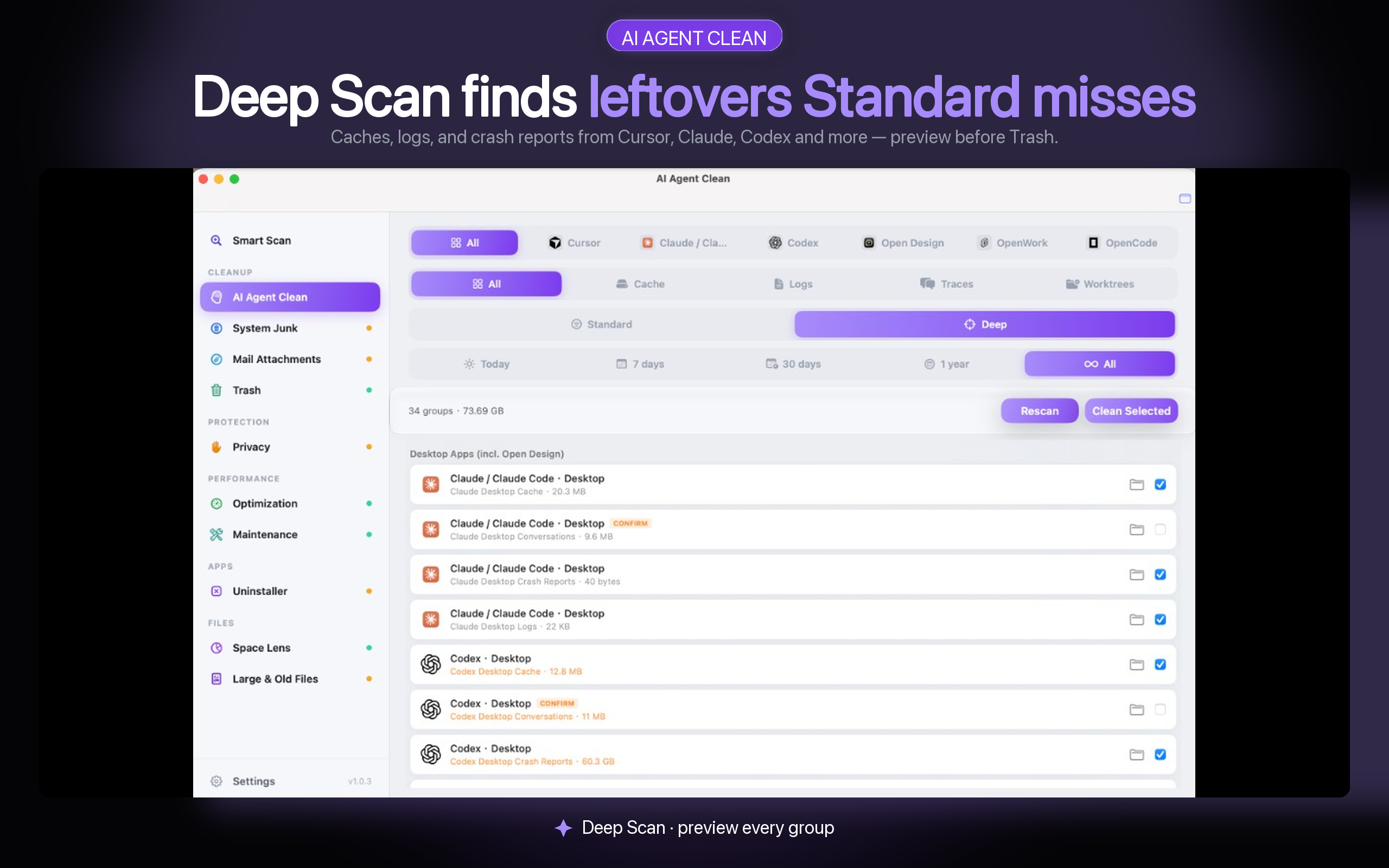
One focused workflow, with control at every step.
Detect supported AI tools and calculate cache sizes on your Mac. Choose Standard for everyday caches, or Deep Scan for leftovers.
Inspect app groups, categories, and sizes before selecting what goes.
Review the confirmation and keep backups. Files in Trash can still occupy disk space; recovery may be limited by missing data, permissions or destination conflicts.
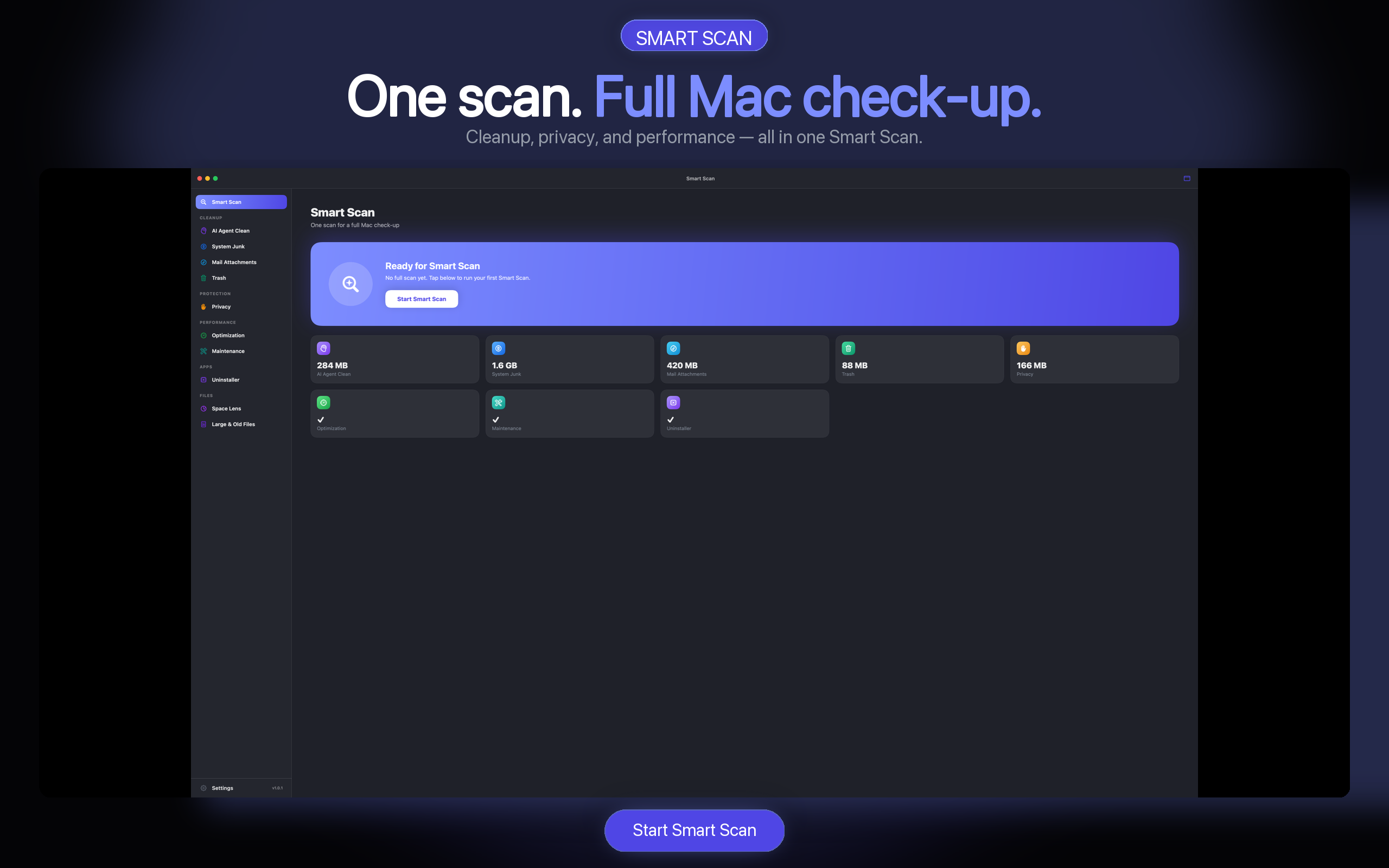
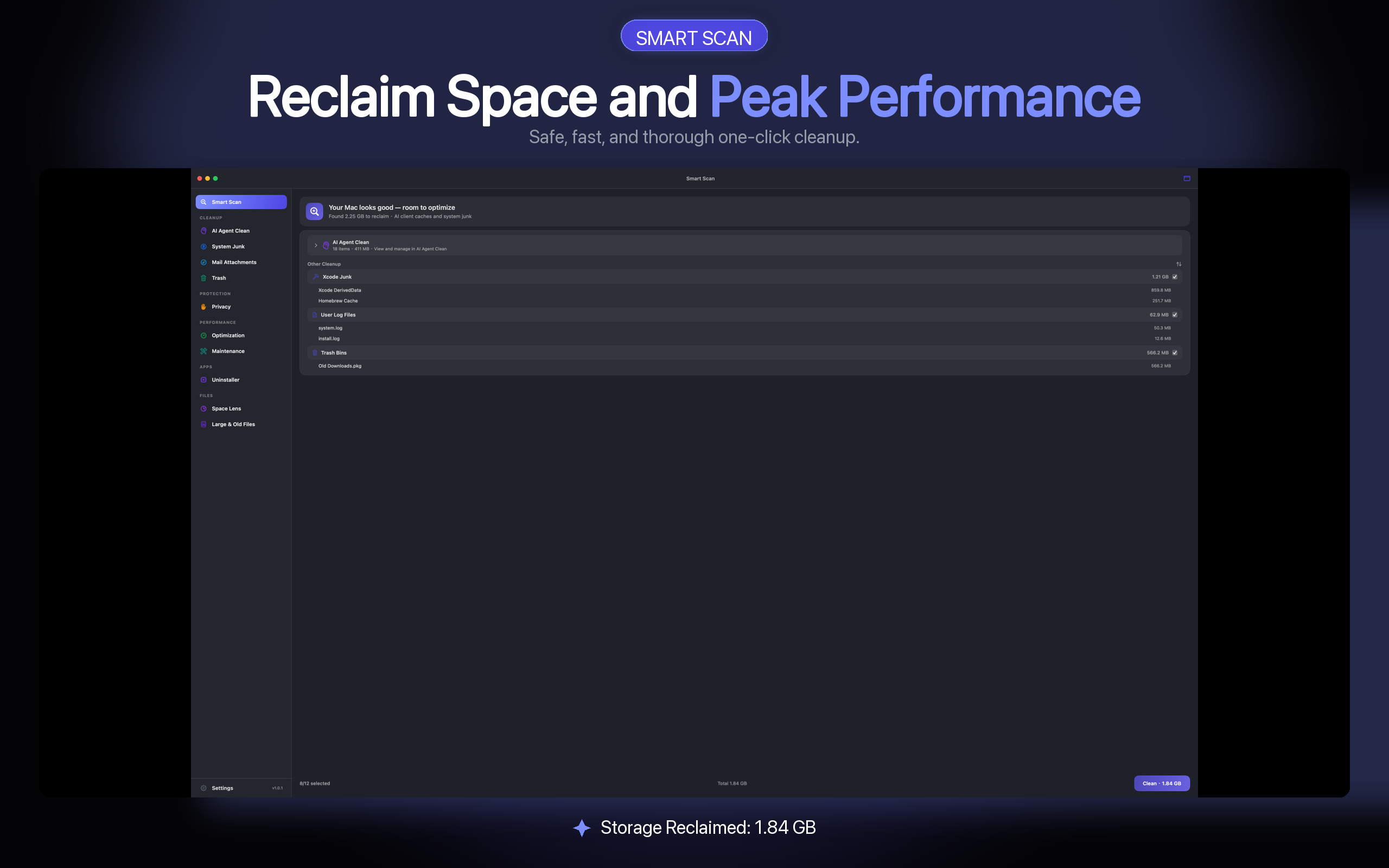
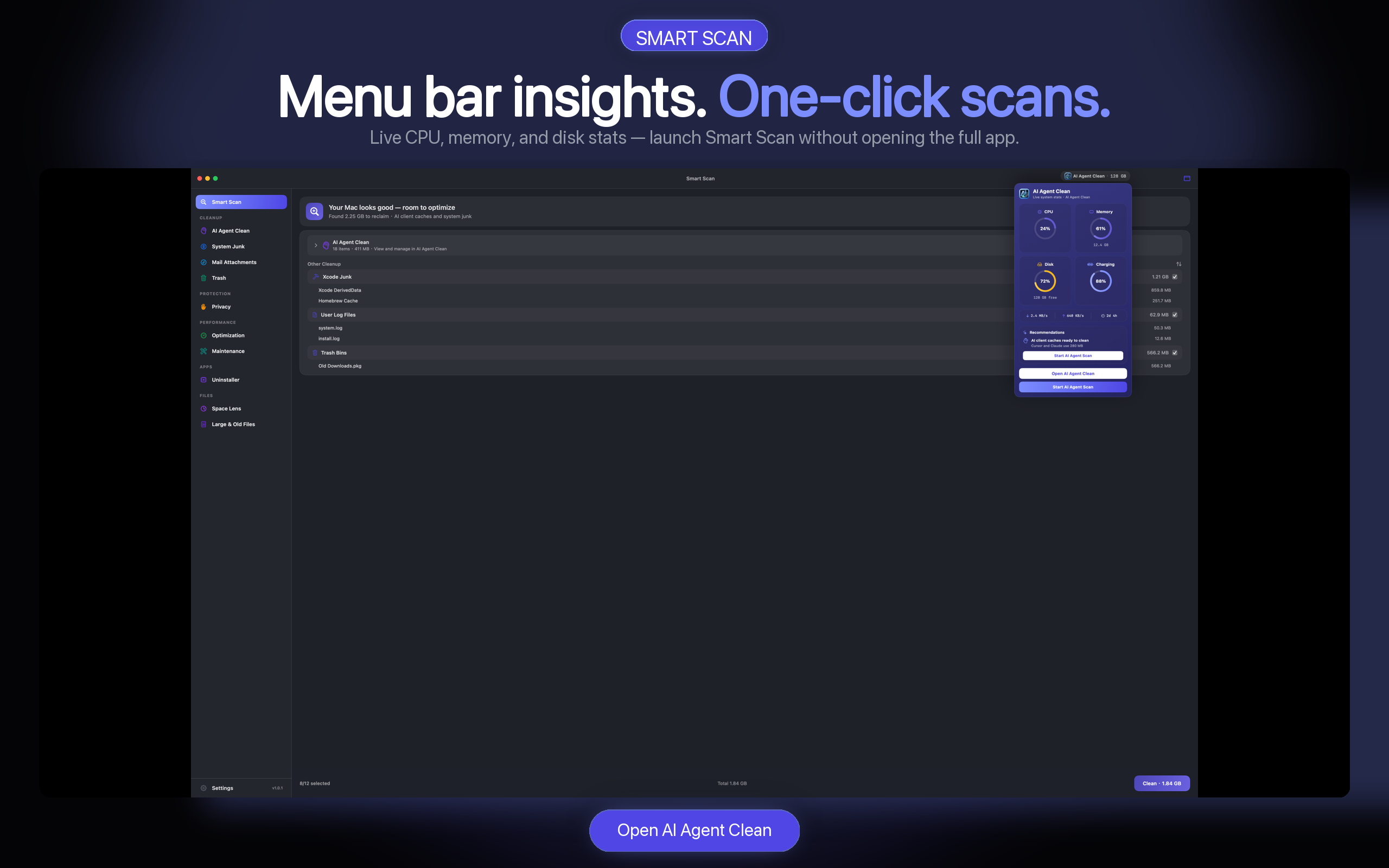
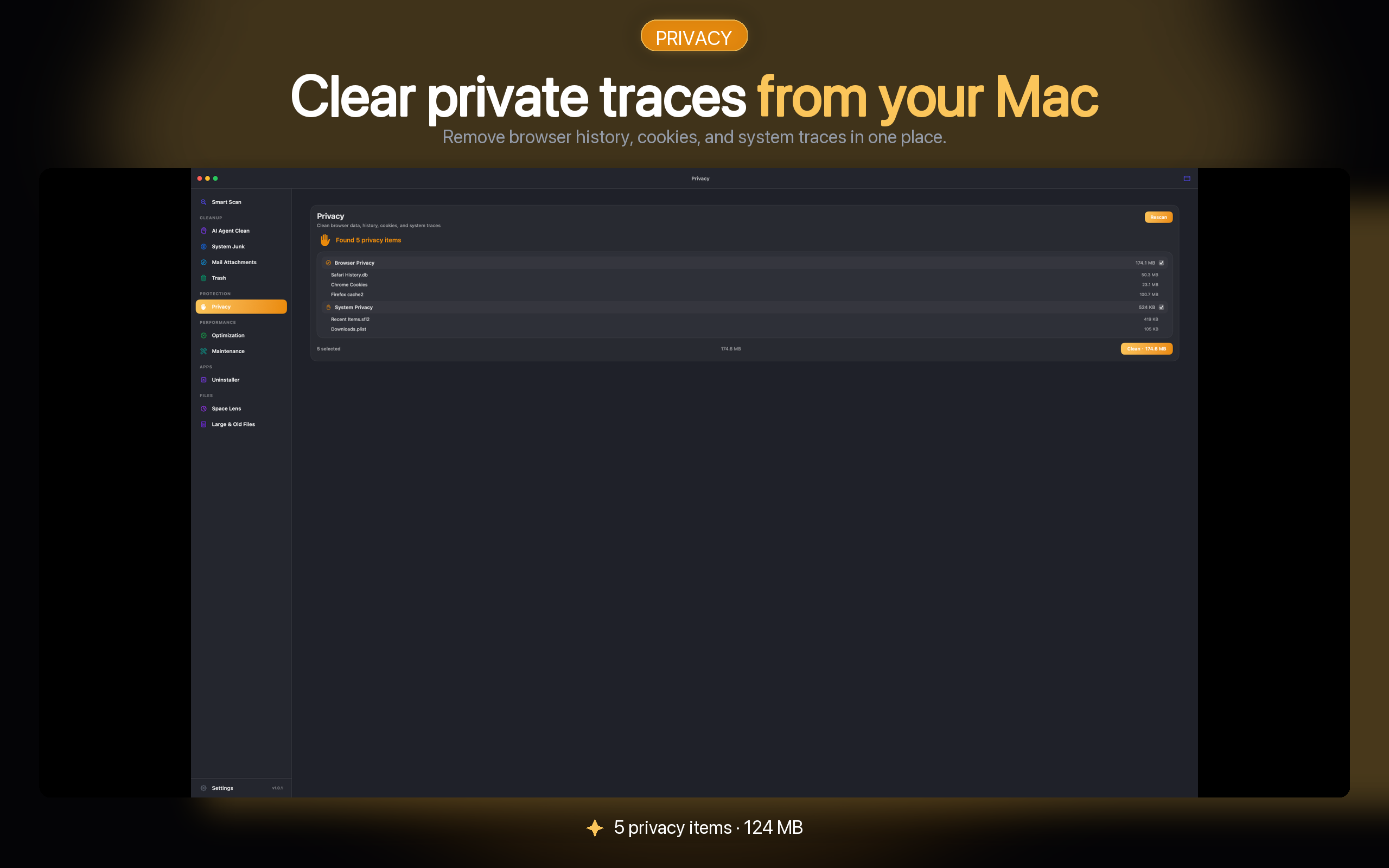
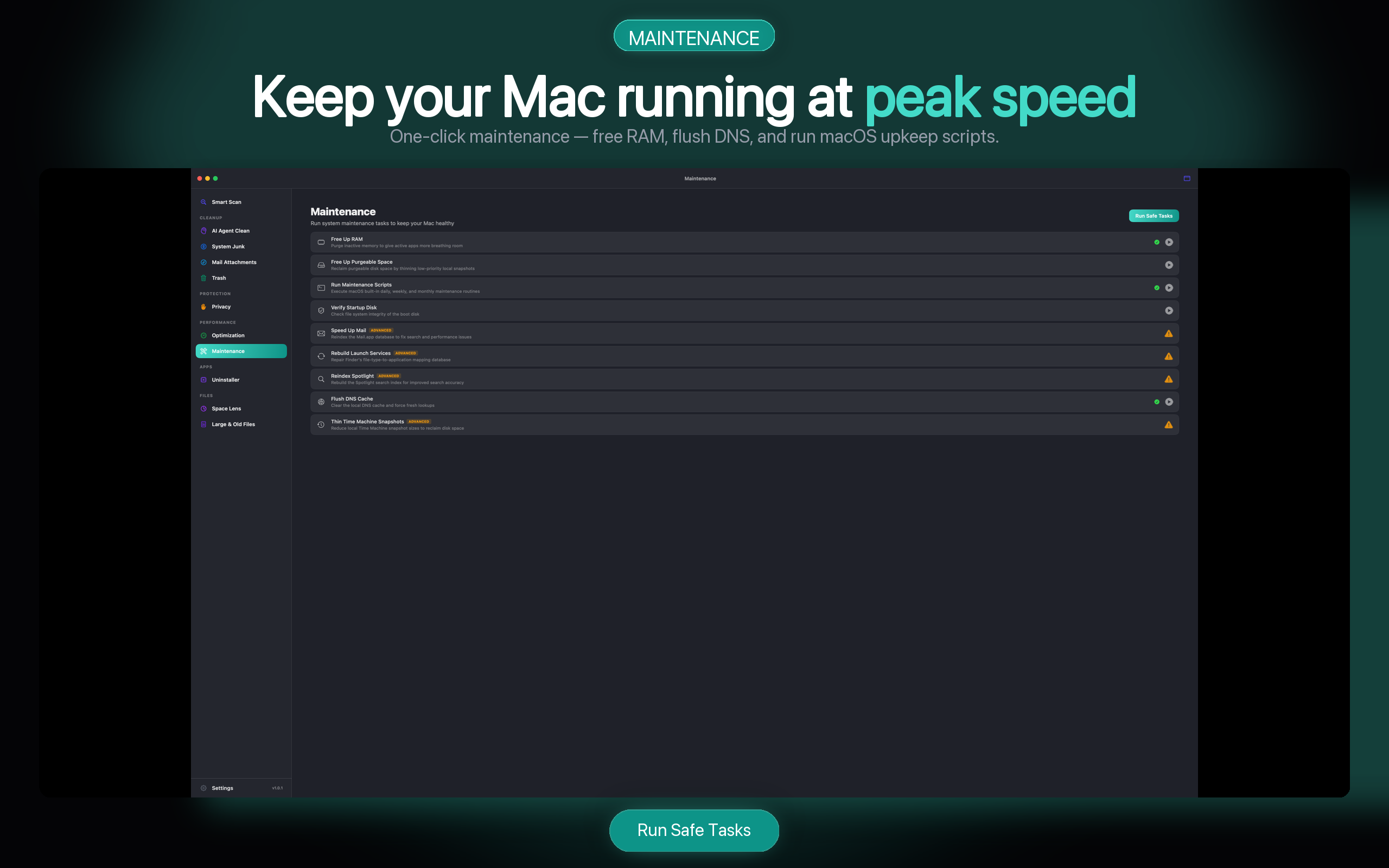
Review available menu-bar information and privacy categories. Binary thinning, startup changes and maintenance actions are unavailable in 1.0.9.
Eligible monthly and yearly subscribers may receive a 7-day App Store trial; confirm availability and terms in the store. Lifetime is a one-time purchase. The Mac App Store handles payment and cancellation.
Flexible, auto-renewable
Save 44% vs 12 monthly payments
One-time purchase
USD reference prices shown. The Mac App Store displays final regional pricing. Read the pricing FAQ
Manual cleanup remains documented for users who want to verify each location themselves.
Review every detected path and selection before cleaning, and back up important projects and sessions. Supported rules do not prove that every file in a selected location is disposable.
No. Scanning and size calculation run locally. File contents and full local paths are not sent to analytics.
Use the recovery action for eligible recorded operations; restoring files does not require an active membership. Recovery depends on the files still being available, the original location, access permissions and any destination conflicts. Keep backups; Trash is not a backup, and emptying it can remove recovery options.
Cursor, Claude/Claude Code, Codex, Open Design, GitHub Copilot, Windsurf, Grok, OpenWork, OpenCode, Gemini CLI, Cline, and more. See What’s New in 1.0.9.
Standard Scan and Deep Scan inspect different supported locations. Additional results can include sessions, worktrees or other persistent data. Review paths and purpose before removal; retain credentials, settings, active work and unknown files. Read the 1.0.4 notes.
Choose English, Simplified Chinese, German, Hebrew, Japanese or Korean in Settings → Interface Language, or follow the system. Some detailed messages may fall back to English. The main window and menu-bar widget follow your selection.
AI Agent Clean supports macOS 14 and later.
See the step-by-step guide: Clear Cursor cache on Mac. AI Agent Clean groups supported locations with size previews; compare each detected path with the guide and your installed tool.
Browse all published articles and guides. Titles marked English open English content.
Check the Mac App Store for trial eligibility and current monthly or yearly subscription terms. Scanning remains free without a subscription.